How to track your app’s rankings in App Store search
For a small app, App Store search is usually the main source of downloads. Where you appear depends on the words in your listing — the name, the subtitle and the keyword field. NicheLens shows which words people find you by, how your place changes day by day and what happened after you edited the listing.
This guide covers the whole “My apps” section: connecting App Store Connect, choosing target queries, the listing check, the positions and impressions tabs, before / after, the optional Admin key, limits and the MCP tools. Everything here is a fact with its source and date; NicheLens never changes anything in your App Store Connect account.
What we track and where it comes from
Each number has one source, and the interface always says which:
- Rank for a word — from the public App Store search, the first 200 results, checked once a day (once a week on the trial). A “word” is a search query + country + store, for example “plant identifier”, United States, App Store.
- Downloads, purchases, proceeds — from your own Apple sales reports, read with your App Store Connect key.
- Impressions and product page views — from your Apple analytics reports (“App Store Discovery and Engagement”), by day, country and source: App Store search, browse, other apps, web.
- Google searches per month next to a word — Google Ads data, marked “fact”, “estimate” or “no data for the country”. With Apple Ads connected, also Apple’s popularity score 1–100.
Other people’s downloads and revenue are known only to Apple. We don’t estimate them and don’t show them.
What we can’t show, and why
- Impressions for a single word. Apple gives impressions only in total for the “App Store search” source, by country and day. Nobody outside Apple has per-keyword impressions for your app.
- “Search” includes ads. Apple’s “App Store search” source includes Apple Ads impressions, so a campaign raises it too.
- Very small numbers. Apple omits values from fewer than 5 users and adds noise. An empty day reads “Apple returned no data”, not zero.
- Places below 200. The public search returns at most 200 apps. Below that we write “below 200” — we don’t guess a number.
Start in 10 minutes
Five steps, in this order:
- Connect App Store Connect. In My apps create an API key with Sales access (or Finance) in App Store Connect → Users and Access → Integrations, and enter the Issuer ID, Key ID, the .p8 file and your vendor number. The page walks you through each field. The key only reads reports; it can’t change your listing.
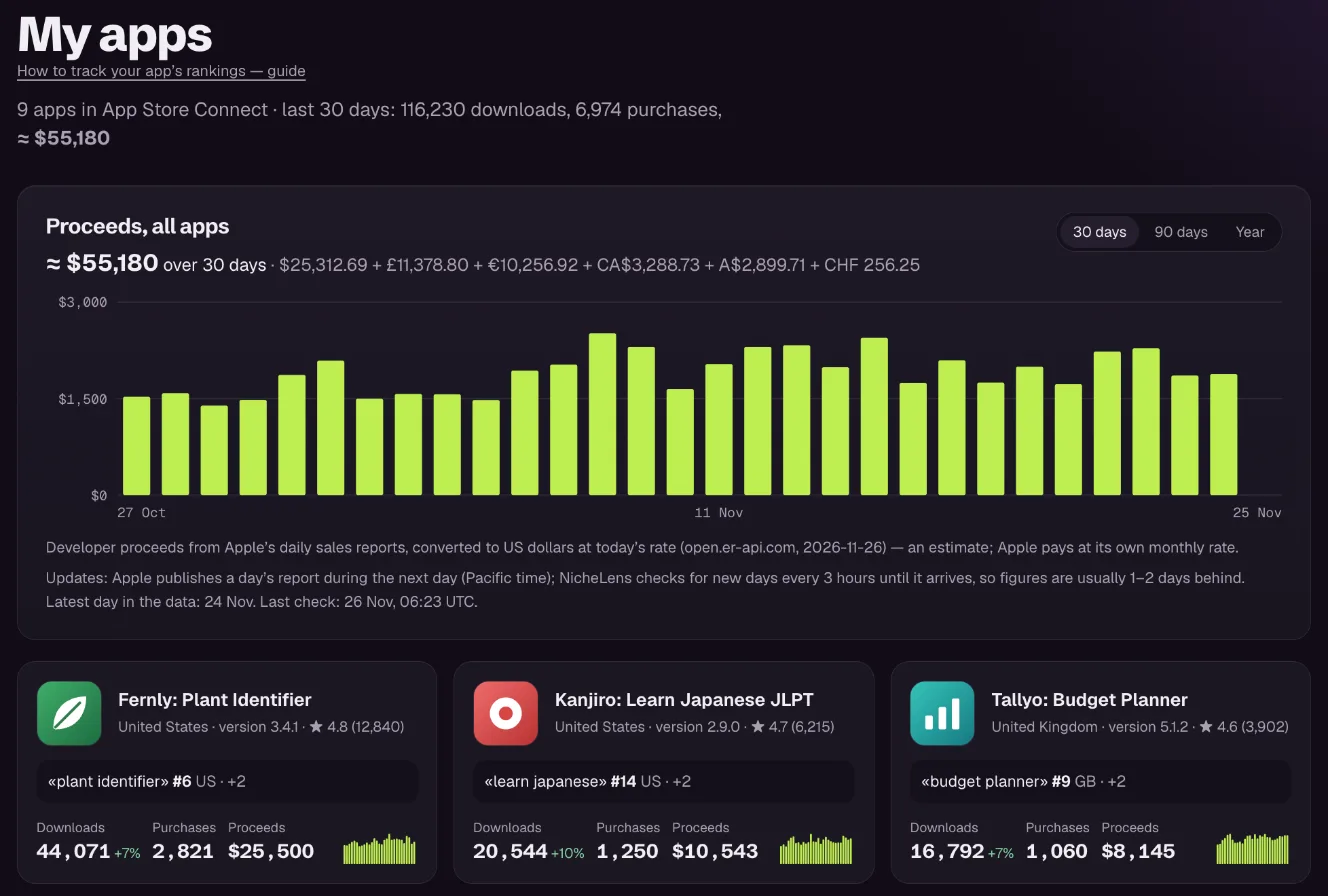
- Pick an app. All apps of the account appear as cards with icon, rating, downloads and proceeds for 30 days; above them — total proceeds of all apps in US dollars and a chart by day (30 days, 90 days, a year). Apps with no downloads in 30 days are folded below.
- Confirm three target queries. These are the searches you want to be found by. NicheLens suggests them from your listing, real search volumes and the niche cards; each suggestion says why it was chosen. Change any of them.
- Run the listing check. It lists remarks and proposes a name, subtitle and keyword field for each language — see the next section.
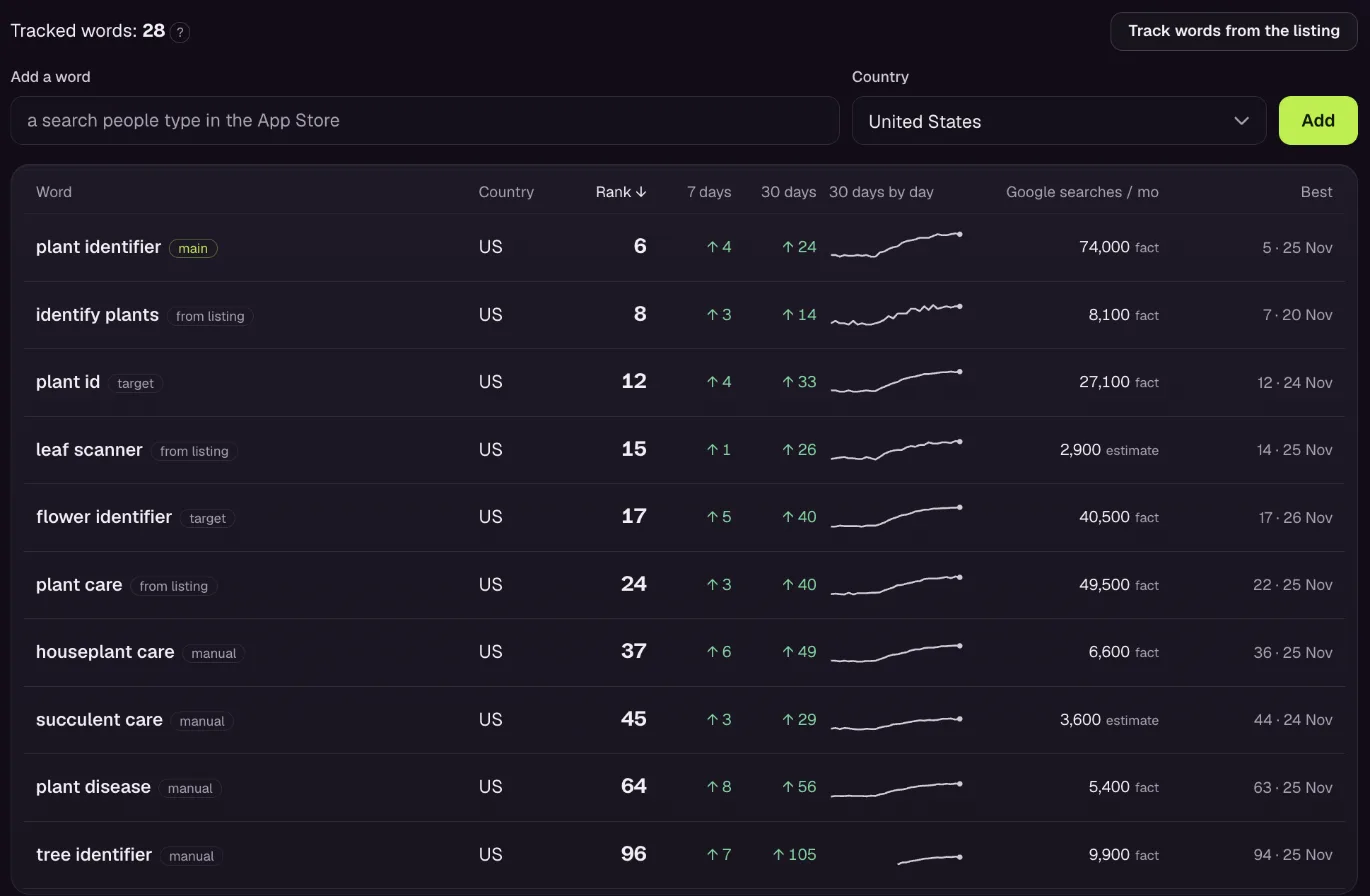
- Add words to tracking. Target queries are tracked automatically; add more by hand or with “Track words from the listing”. The first rank is checked right away, then daily. The Positions tab of My apps shows every tracked word of every app on one screen: the rank now, the change over 7 and 30 days and a small chart by day.
The listing check: remarks and proposed texts
The check compares your current listing with your target queries using fixed rules, not a language model: is the main query at the start of the name, are words repeated between the name, subtitle and keyword field (repeats waste characters), are there words the App Store ignores, other brands, “official” or government words that review may reject, words of another script in a locale.
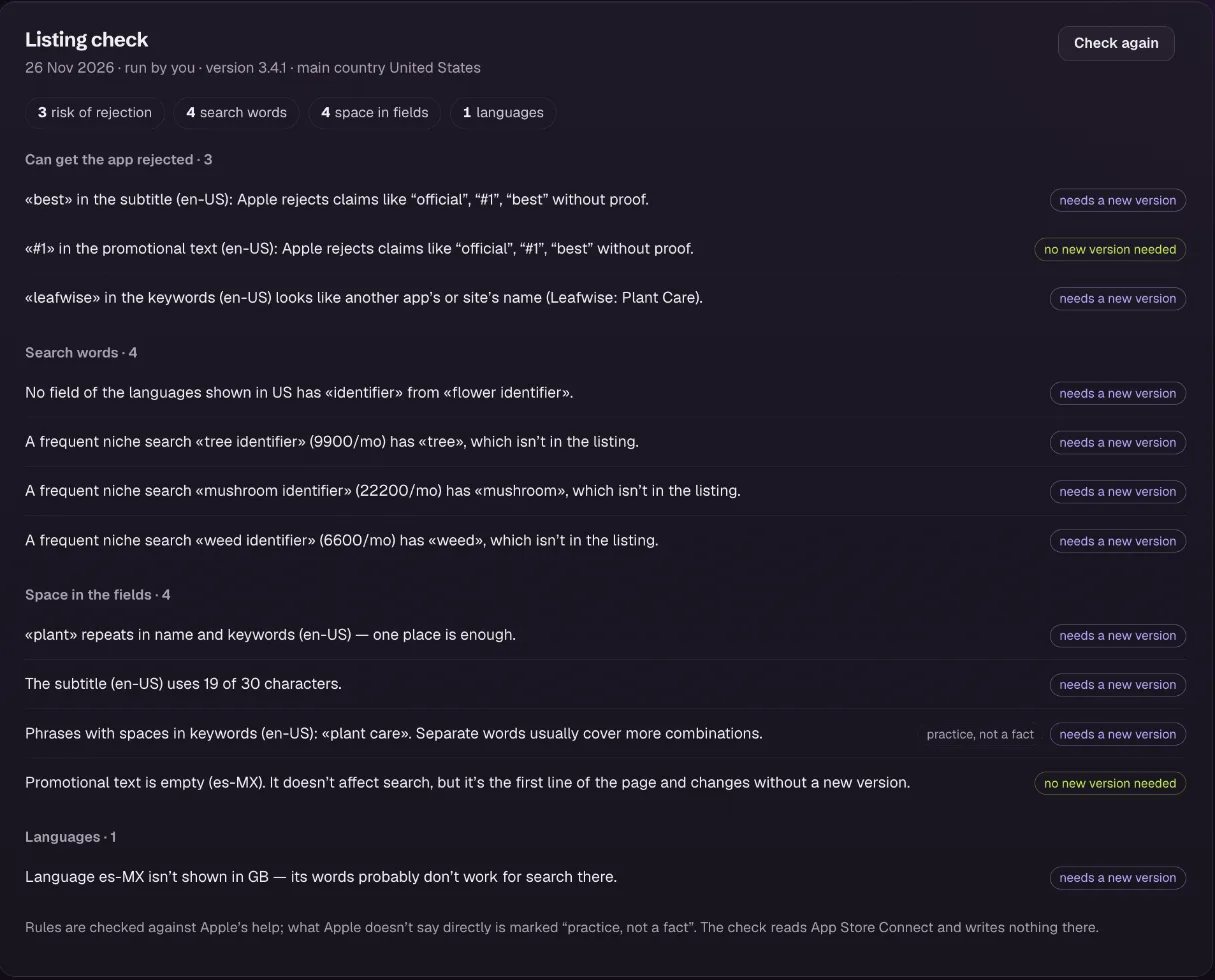
Below the remarks are proposed texts for each language: name up to 30 characters, subtitle up to 30, keyword field up to 100 — counted for you. Each proposal says which facts it is based on. They are suggestions: NicheLens writes nothing to App Store Connect, you decide and paste them yourself.
The check runs on its own when you first choose target queries, every 30 days, and when the listing changes. You can also run it by hand: 2 times a month on the trial, 20 on Solo, 100 on Pro.
In the facts package for assistants (MCP tool app_audit) there are also “gap rows”: for each target query — is it in the name, subtitle or keywords, where the app ranks, how the leaders’ prices compare and what users complain about.
The Positions tab
For each word you see the rank now, the change over 7 and 30 days, the best rank ever and the dates it first entered the top 200, top 50 and top 10. Next to it — monthly Google searches and, with Apple Ads connected, Apple’s popularity.
Three events are recorded: “entered the top 10”, “dropped out of the top 50” and “first appeared in search”. They show in the summary and in a weekly email on Mondays, which you can turn off in Settings or with one click in the email.
If most downloads come from a country where your main query isn’t tracked, NicheLens adds the main query there by itself (tag “main country”) and shows it as a finding in the summary. It uses a word of your plan; with no free words it stays paused until one frees up. If you remove it, it isn’t added again.
You can pause a word: its history stays, it stops counting against the limit.
How to read the chart
The rank axis is upside down: first place is at the top, so a line going up is good. Lines show the main query and the best tracked words; a gap in a line means “below 200” that day.
Bars at the bottom are impressions from App Store search, from your Apple analytics. Dashed vertical lines mark every version release; the list of released versions with dates is on the “Listing and sales” tab. Switch the country and the period (30 days, 90 days, all). Move the pointer over the chart (or tap it on a phone) to see every word’s rank and the impressions for that day; the proceeds chart on My apps works the same way.
The Impressions tab
Impressions by day and source as stacked bars, then a funnel: impressions → product page views → downloads, with “page views per 100 impressions” and “downloads per 100 page views”. When the base is under 30, the share is marked “too little data” instead of a misleading percentage.
Impressions need Apple’s analytics reports, which require a one-time request created with an Admin key (next sections). Apple prepares the first reports in 1–2 days; after that they arrive daily, and NicheLens picks them up every 6 hours.
Did the change work? Before / after
Each check saves a snapshot: the listing texts, version, ranks and sales. The “Before / after” tab compares any two snapshots: which fields changed, how the ranks moved, downloads 30 days before and after, which remarks were fixed, which remain and which are new.
How to read it honestly:
- Wait 2–4 weeks after the new version goes live. Ranks move first, impressions and downloads follow.
- Look in order: rank for the target words → impressions from search → downloads.
- Remember the season and the competitors. The tab shows Google Trends interest for both periods; if demand fell, a flat result can still be a win. Competitors change their listings too.
- With small numbers, draw no conclusions. If a period has few downloads, the tab says so. A rise from 3 to 6 downloads is noise, not proof.
The tab states facts, not causes: “rank went from 24 to 12 after version 2.1” — not “the new subtitle worked”.
The Admin key: why, what we do with it and what we don’t
Apple lets only an Admin key create the request for analytics reports. That is the only thing NicheLens does with it: once per app it creates an ongoing request for the “App Store Discovery and Engagement” report. After that, reports are downloaded with your ordinary Sales key.
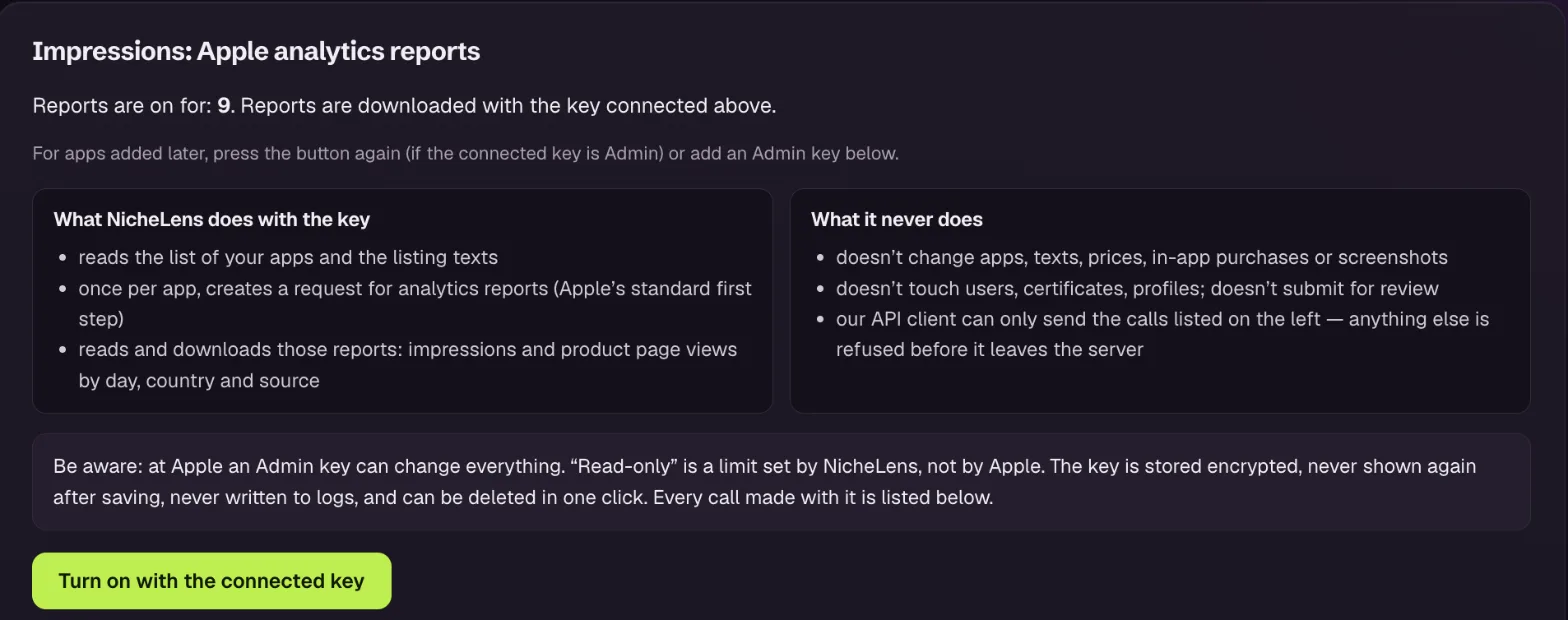
The key is limited in code to a closed list of calls: list apps, create and read report requests, list reports and download them. Anything else is refused before it leaves our server — we test that. Every call is written to a log you see on the same page.
Step by step:
- If your connected key already has the Admin role, press “Turn on with the connected key” — nothing else to enter.
- Otherwise, in App Store Connect → Users and Access → Integrations → Team Keys create a key with Admin access, download the .p8 file (Apple gives it only once).
- In My apps → Impressions: Apple analytics reports enter the Key ID and the .p8 file, choose “Use it once to turn reports on, then delete it” or “Keep the Admin key” (reports for apps you add later turn on by themselves), confirm and save.
- To remove it: press “Delete the Admin key” here, and revoke it in App Store Connect. Report requests already created keep working.
NicheLens never edits your listing, prices, builds or users — not with this key, not with any other.
Limits
A word is a query + country + store, counted across the whole account; target queries count too. Words are checked once a week on the trial and once a day on Solo and Pro.
- Trial: 10 words, 1 app.
- Solo: 100 words, up to 5 apps.
- Pro: 500 words, up to 50 apps.
When the limit is reached the add form shows the counter and is turned off; pause or remove a word to free a place. After a plan downgrade the extra words are paused, not deleted — their history stays.
Working through an AI assistant (MCP)
Everything above is also available to Claude, ChatGPT or any MCP client with your NicheLens key (Settings → Connect). Useful tools: apps_overview — all apps with sales; app_check — remarks and proposed texts; app_check_diff — before / after; app_ranks and app_rank_history — ranks with change over 7 and 30 days; app_keywords — add, remove or pause tracked words; app_impressions — impressions and the funnel; app_audit — the facts package with gap rows.
Without a key, the about tool explains the listing rules and what is tracked, so an assistant can answer questions about them. Ask it, for example: “Check the listing of my Polish app and propose a subtitle without repeats.”
Frequently asked questions
- Why is the rank in NicheLens different from what I see on my phone?
- App Store search is partly personal: it depends on your history, the device, the language and the country of your Apple account. NicheLens checks the public results for the chosen country from a server, the same way every day. Compare the trend over days, not one number with one phone.
- Why are there no impressions?
- Either the analytics request hasn’t been created yet (it needs an Admin key once), or Apple is still preparing the first reports (1–2 days), or the volume is too small and Apple returned nothing for those days.
- Why does a word say “below 200”?
- The public App Store search returns at most 200 apps for a query. If the app is not among them, there is no number to show.
- Does NicheLens change anything in my App Store Connect?
- No. Texts are only proposed; you paste them yourself. The single exception is creating the analytics report request with an Admin key, which you enable yourself.
- How often are downloads and proceeds updated?
- Apple publishes the sales report for a day during the next day (Pacific time). NicheLens checks for new days every 3 hours until the report arrives, so figures are usually 1–2 days behind; the page shows the latest day in the data and the time of the last check. Totals in US dollars use today’s exchange rate and are an estimate — Apple pays at its own monthly rate.
- Why is the proceeds figure lower than in my purchases dashboard?
- Proceeds are what Apple pays you: after its commission (15% or 30%) and after VAT or sales tax in the buyer’s country. Many purchase dashboards show what customers paid — the price with taxes. NicheLens shows both: proceeds in the chart and “Customers paid” under it. Fresh days may also be missing here for 1–2 days, while an in-app purchase SDK sees them at once.
- How soon will I see the effect of a new listing?
- Ranks usually react within days after the version goes live; give it 2–4 weeks before judging, and look at the before / after tab with the season in mind.
Track your own app
Connect App Store Connect and see where your app ranks for the words that matter.